Autonomous Local Desktop & Folder Clean Up with Claude Code
Five hundred files on my desktop. I know how they should be sorted — I just can't face dragging them one by one.
The person who submitted this, in their own words
One natural language command sorts and renames hundreds of cluttered downloads, receipts, and screenshots safely.
When it won't work
- Folders with contracts, IDs or customer data: back up before any AI touches them
- Folders already handled by a working rule — a script beats model judgement
Before you start
- A computer with Node.js installed (v18+)
- Claude Code or Cursor editor
Step by step
Launch Claude Code in Your Directory
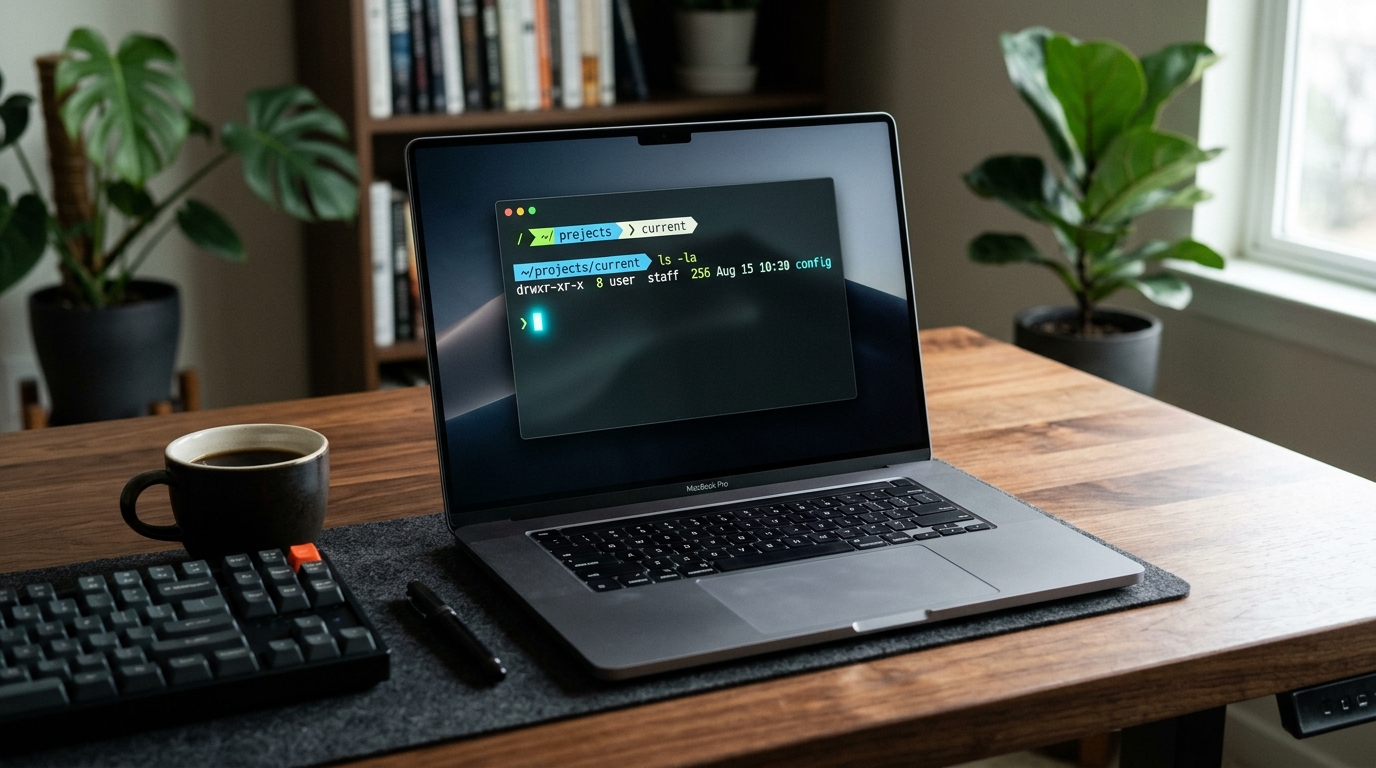
Open Terminal or PowerShell, navigate to your Desktop, and run `claude`.
Send Dry-Run Safe Organizer Instruction
Paste this safe prompt so Claude plans the structure before touching any file:
Inspect all files in the current folder.
Rules:
1. DO NOT move or delete any file yet. First print a dry-run plan categorizing files into [{{folderRules}}].
2. Rename screenshots to YYYY-MM_screenshot_##. Move invoices to Invoices/YYYY.
3. Wait for my explicit confirmation before executing changes.
Review and Confirm Execution
Review the before/after preview. Type "y" to confirm. Files will be organized in seconds.
How to know you did it right
- All loose screenshots and documents neatly archived in subdirectories
- No files accidentally lost or deleted
Who checked it
CopyAI tested · Tested on 2026-11-01 · 976 made it
Where it usually breaks
一定要先在一个空目录试跑,确认归类规则再对真实目录动手。
Starter files
- organize-rules.md 1024 B
Did you make it?
Tell us how it went. If it broke, say where — that is how we fix the recipe.
Do this next
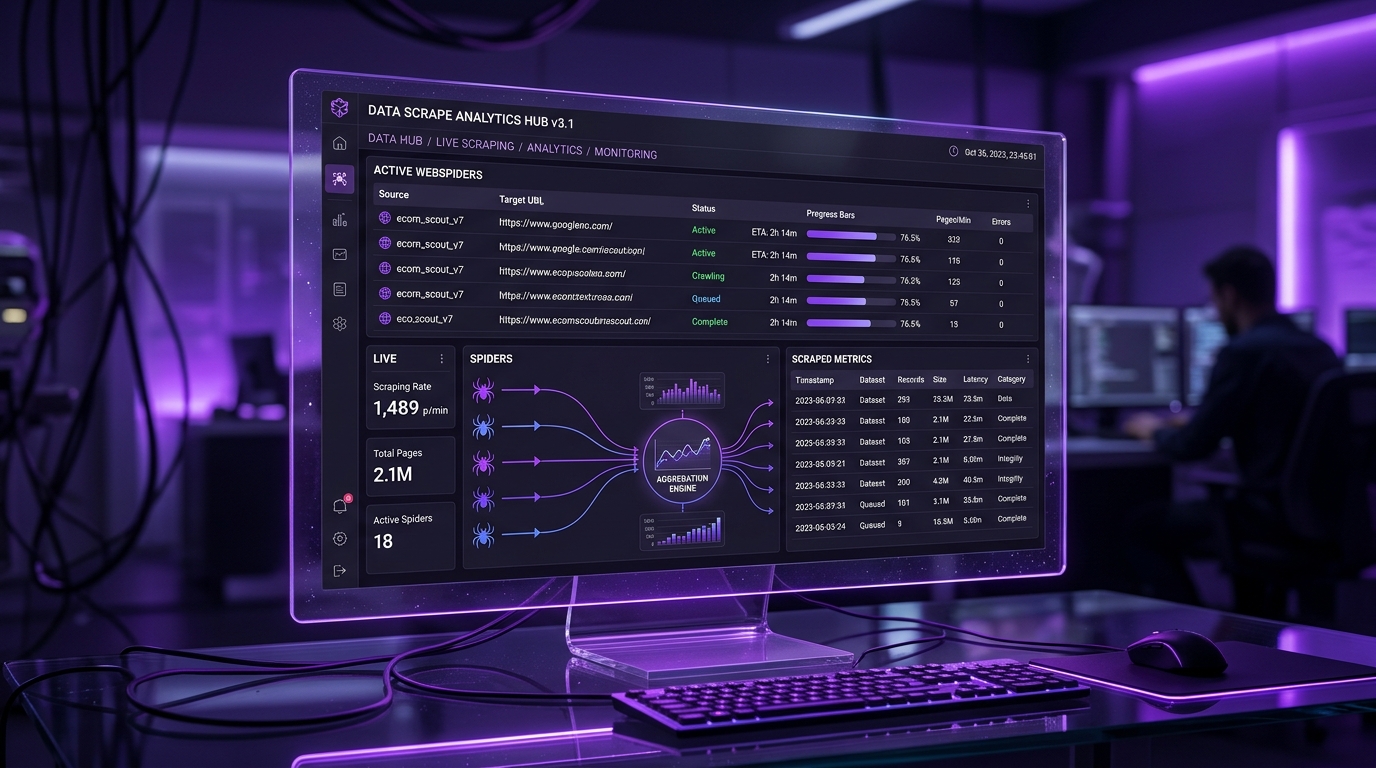
Browser MCP autonomously navigates real web pages, paginates, extracts product data, and writes to an Excel spreadsheet.
Competitor Price Tracker to Excel & Webhook
- Automate & scrape
- 5 min
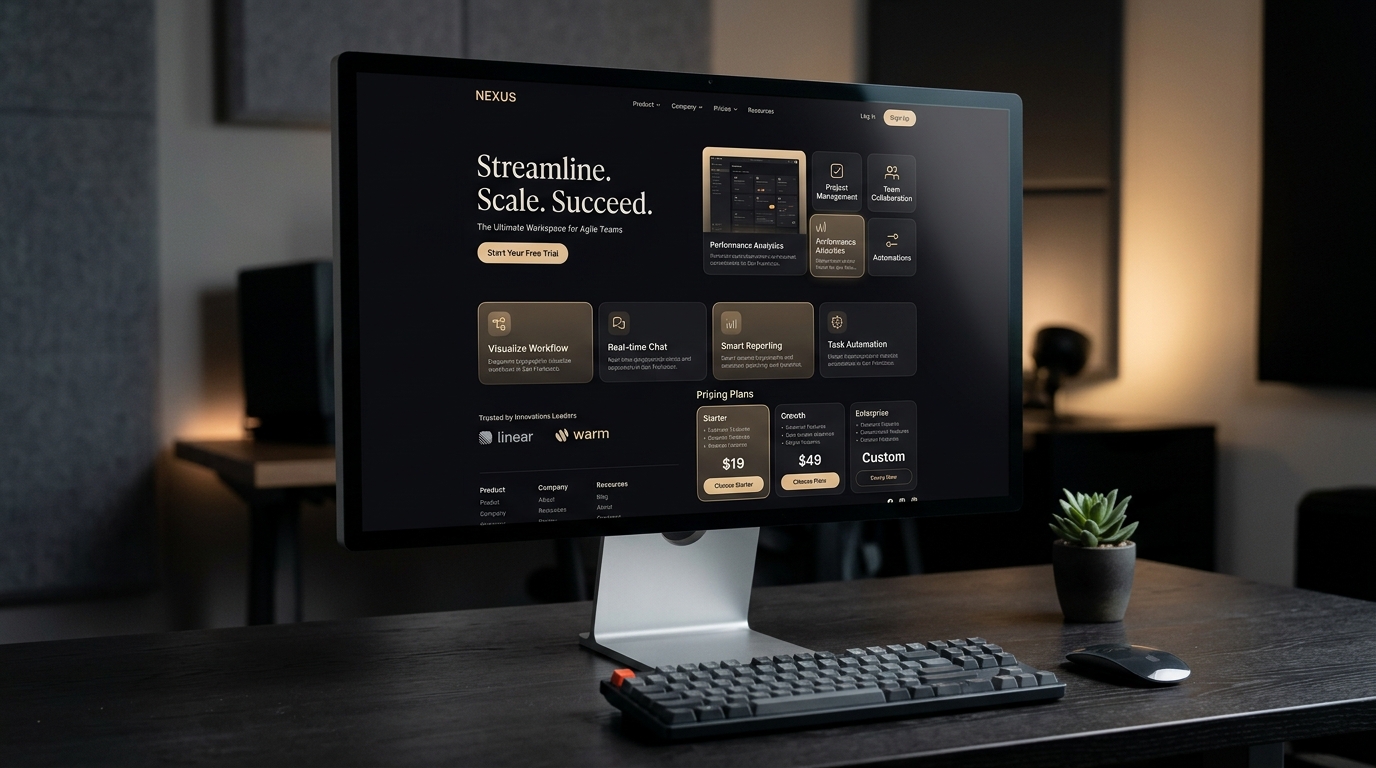
Turns a reference screenshot or your own value proposition into a responsive Next.js + Tailwind page you can deploy.
Clone a Reference Site into a Deployable Landing Page
- Sites & landing pages
- 10 min

Transforms a simple smartphone product snapshot into an 8K studio poster and 5-second cinematic product video.
Product White-Background Photo to Cinematic Video Ad
- Product & short video
- 5 min